
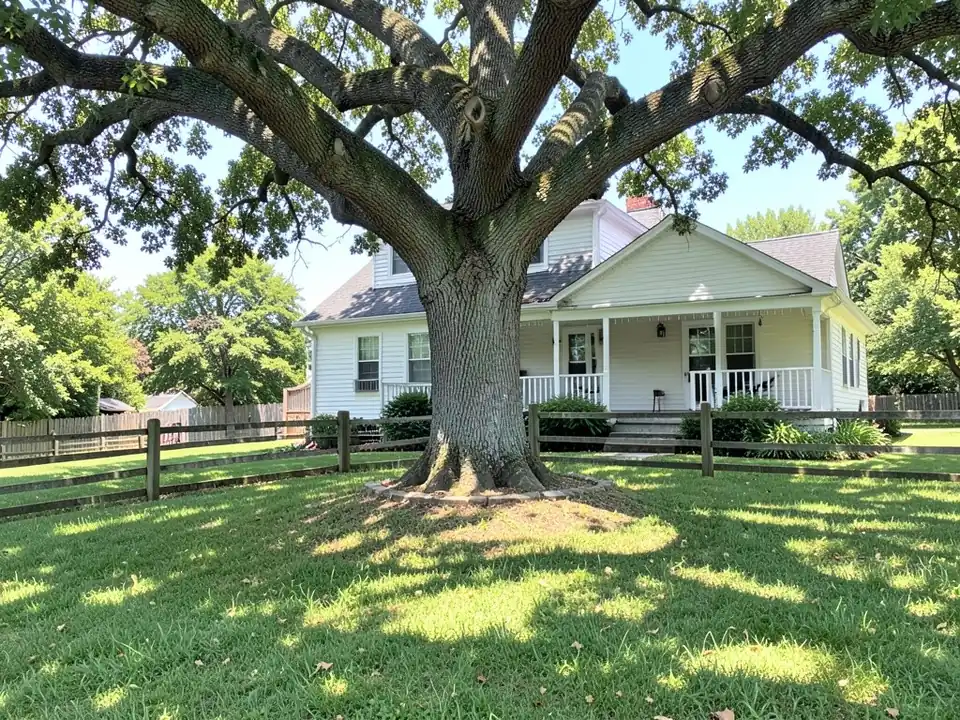
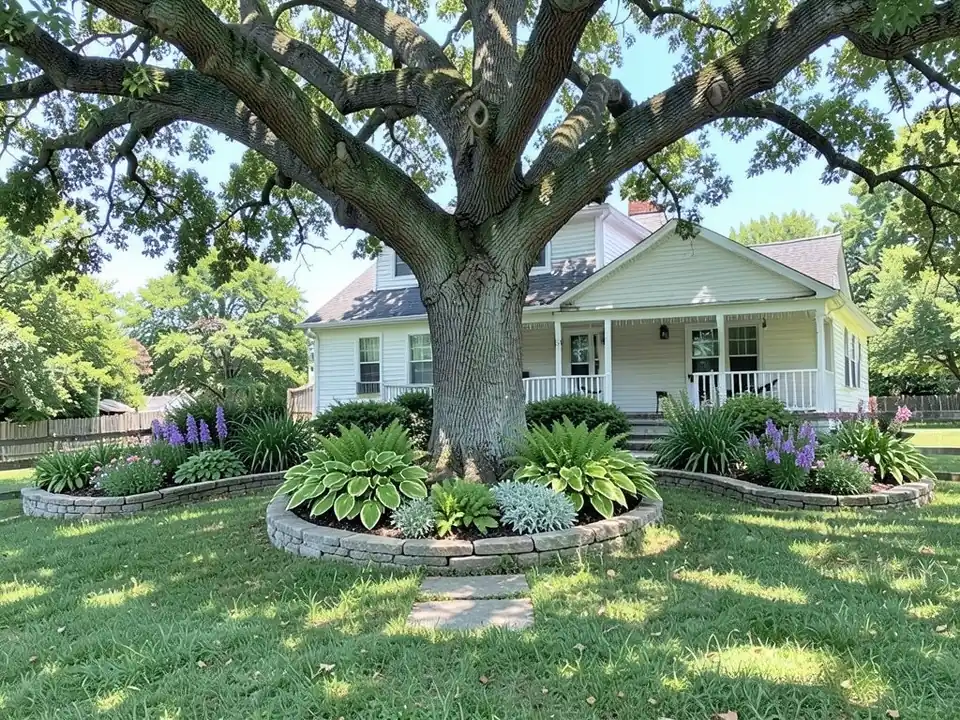
How AI garden design works
The AI garden design tools we looked at, from GenRoom, CapCut's Dreamina and HomeDesigns AI to the AI Garden Design apps, follow the same steps: you upload a photo of your garden, choose a style or describe what you want, and get back an image of the same garden planted. Dreamina's sample instructions ask it to keep the layout and the fences unchanged.
Ours works the same way. It edits your own photo instead of drawing a new garden, so the house, the walls and the fence can stay as they are while the beds, borders, plants and paths change. You can see a border or a new bed in your own garden before you buy a single plant.
Garden styles to try
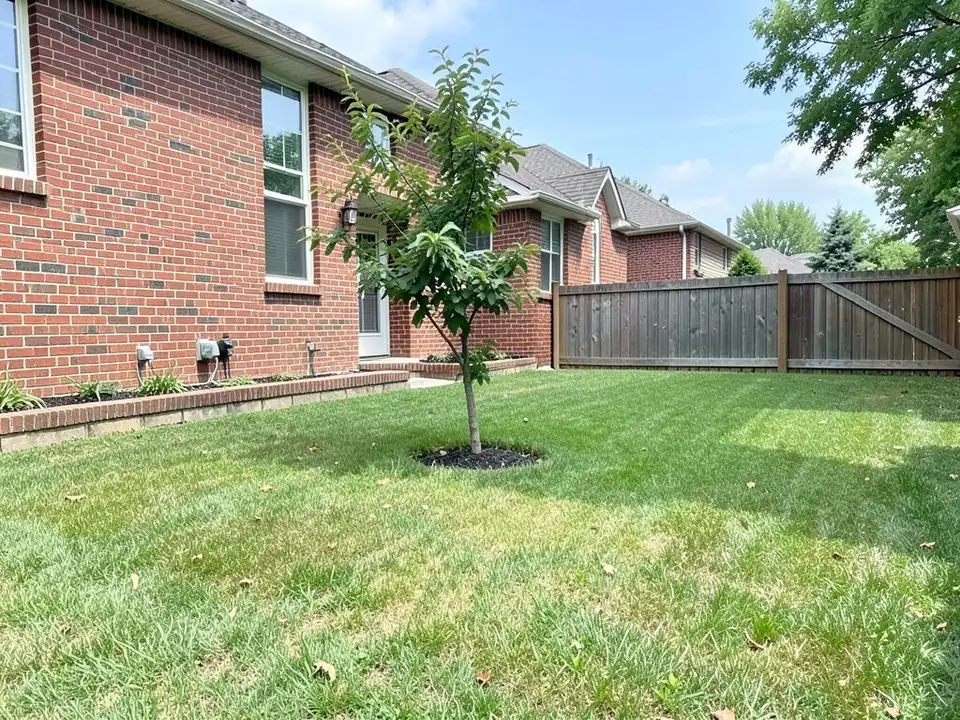
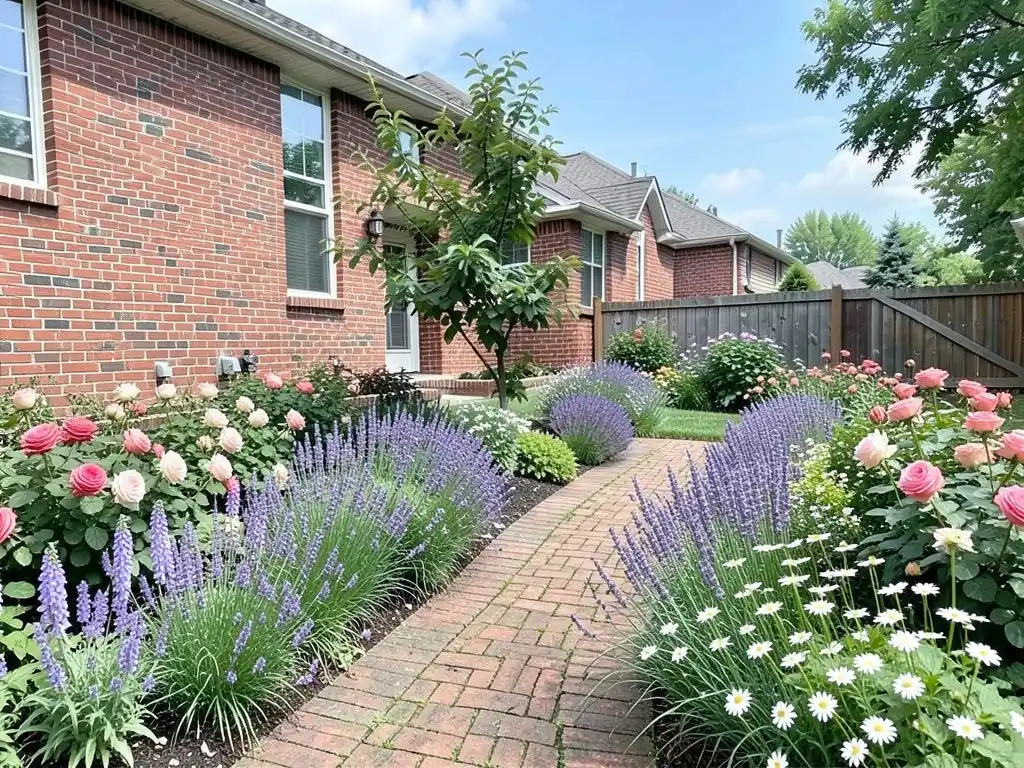
Dreamina names modern, contemporary, cottage, Japanese, Mediterranean, tropical, minimalist and drought-tolerant styles, and HomeDesigns AI describes modern gardens as geometric, formal gardens as symmetrical and traditional gardens as a balance of flowers and greenery. Our three examples cover a cottage garden, a modern garden and shade beds around a tree.
- Cottage: Wide, full borders of flowers with a narrow path, as in our first example. See our cottage garden ideas and rose garden ideas pages.
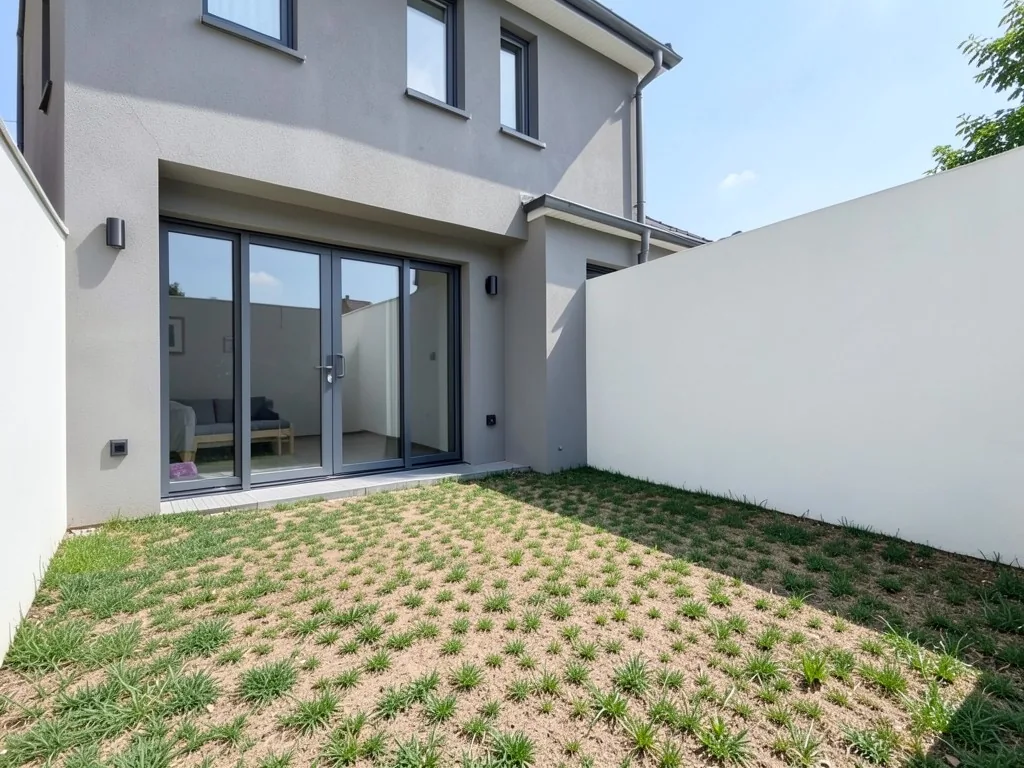
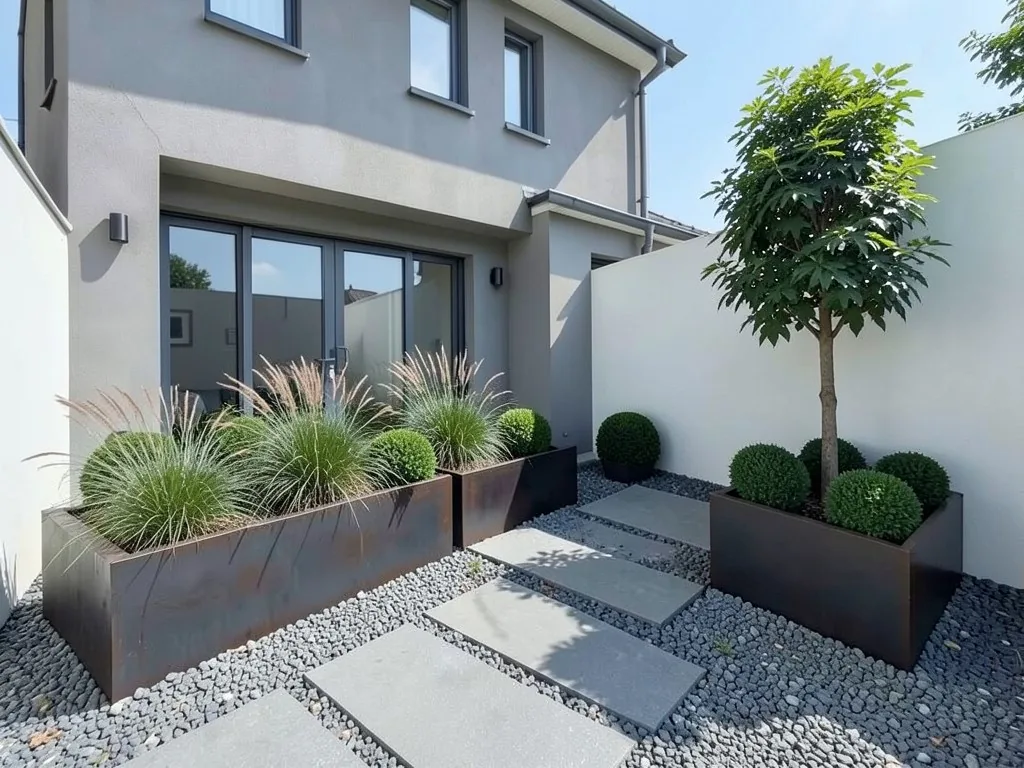
- Modern: Clean shapes, planters, grasses and clipped balls, with slabs or gravel, as in our second example.
- Shade: Hostas and ferns under a tree, as in our third example. See our shade garden ideas page.
- Japanese and Mediterranean: Two more styles named by Dreamina. See our Japanese garden ideas and Mediterranean garden ideas pages.
Beds, borders and paths
GenRoom's garden bed tool offers straight cottage borders, curved naturalistic drifts, raised cedar boxes and stone-edged spirals. It suggests putting tall plants such as foxgloves, delphiniums and hollyhocks at the back of a border, roses and salvias in the middle, and low edging plants such as lavender or catmint at the front.
Say the bed shape, the edge and the path material in your instruction: "curved beds edged with stone", "a narrow brick path" or "large grey concrete slabs set in gravel". In our examples the AI followed the edges and path materials well, but drew only two stepping stones when we asked for a path across the lawn. For more bed ideas, see our flower bed ideas page.
What to write in your instruction
The tool above is in Custom mode, so the result depends on what you type. In our tests, short and exact instructions worked better than long wish lists.
- Say what may change: Start with "Turn ONLY the lawn into..." or "Add ONLY curved planting beds...", so the AI knows which part of the photo is open to change.
- Name the plants: "Roses, lavender, foxgloves and daisies" or "hostas, ferns and flowering shrubs". It drew most of the plants we named, but not every one.
- Say where the beds go: "Along the fence and the house" or "around the base of the oak tree". Without a place, the AI picks one.
- Name the path and the edging: "A narrow brick path through the middle" or "beds edged with stone".
- Say what must stay the same: End with "Keep the house, the fence and the camera angle exactly the same." Even then it removed a split rail fence in our third example.
How to try a garden design on your own photo
The tool above is already in Custom mode. The Yard Redesign styles have no text box, so you cannot ask for roses, lavender and a brick path there. Custom lets you name the beds, the plants, where they go and what must stay the same.
- Take the photo in daylight at eye level from where you would stand to look at the garden, with the beds or lawn you want to change and the nearby fence, walls or path in frame.
- Describe the change in the Custom Design Requirements box: what may change, the beds and their edging, the plants, the path, where each goes, and what must stay the same.
- Upload your photo under Upload Your Garden Image and click Generate Custom Design. You sign in with an email code or Google when you generate.
- Compare the result with your photo. If it left out a plant, removed a fence or shortened a path, say so more exactly and try again. Each run comes out a little different.
What the AI can and cannot do
The AI shows a look: roughly how a border, a bed or a new path would sit in your own garden. That helps you choose a style and talk it through with your family or a garden center.
It does not know your soil, sun, climate or hardiness zone, and it does not check whether the plants it draws will grow where you live. GenRoom notes that its default styles target temperate climates. Reviewers of the AI Garden Design app on the App Store say they could not control exactly where items go and that the app added things they did not ask for. Ours has the same limits: in the examples above it left out foxgloves, drew a single-trunk tree instead of a multi-stem one and removed a fence. Treat the result as a picture of an idea.
AI garden design instructions to paste into Custom mode
These are the exact instructions we used for the three examples above, in the same order. In the tool above, Custom is already selected: paste one into the Custom Design Requirements box, then upload your photo. Swap in your own plants, positions and what must stay.
- Turn ONLY the lawn into a cottage garden: wide flower borders of roses, lavender, foxgloves and daisies along the fence and house, a narrow brick path through the middle, and keep the small tree. Keep the house, the fence and the camera angle exactly the same.
- Redesign ONLY the lawn as a modern garden: rectangular raised planters of dark steel with ornamental grasses and boxwood balls, a path of large grey concrete slabs set in gravel, and one multi-stem tree in a planter. Keep the house, the wall and the camera angle exactly the same.
- Add ONLY curved planting beds edged with stone around the base of the oak tree and along the fence, filled with hostas, ferns and flowering shrubs, with a stepping stone path across the lawn. Keep the oak tree, the house, the fence and the camera angle exactly the same.
Frequently asked questions
Can AI design my garden from a photo?
Yes. Upload a photo of your garden, describe the beds, plants and path in Custom mode, and the AI returns the same view with them drawn in. It edits your photo rather than drawing a new garden.
Which garden styles can I ask for?
Any style you can describe. Cottage borders, a modern garden of planters and grasses, and shade beds under a tree are the three examples on this page. Japanese, Mediterranean and formal gardens work the same way if you name their plants and materials.
What should I type to get a good result?
Say what may change, name the plants, say where the beds go, name the path and the edging, and end with what must stay the same. The three instructions printed on this page are a good starting point.
Will the AI draw every plant I name?
Not always. In our cottage example it drew roses, lavender and daisies but no foxgloves we could pick out. Check the result plant by plant, and try again if one is missing.
Does the AI know which plants will grow in my garden?
No. It draws the plants you name whether or not they suit your soil, sun or climate. Check each plant with a local garden center or extension office before you buy.
Why does the result change every time I generate?
Each run starts from a different random seed, so the same instruction gives a slightly different garden each time. We tried three seeds for each example on this page and show the best one.
Do I need an account, and is it free?
Create a free account with an email code or Google to generate. You get 1 free render, and free renders carry a watermark. More renders and no watermark come with a paid plan.